How to Block AI Crawlers from Skewing Website Analytics
Learn how to stop AI crawlers from polluting your analytics, pick the right blocking layer, and keep real visitors and revenue in view.

NoirTrack team·Follow

AI crawlers can inflate pageviews, distort source data, and make "traffic" look healthier than it is. Blocking AI crawlers from website analytics means stopping those bots before they reach your numbers, then checking what was caught so you only block the requests you want to stop. If you only need visibility, monitor first; if the crawler never hits your site, robots.txt alone will not protect your numbers.
AI crawlers are now part of the bot traffic mix, and many of them look close enough to normal requests to pollute dashboards. If you care about real visitors, revenue, and source quality, you need a blocking layer that works before the visit is counted.
This post separates policy from tooling: what to block, where to block it, and how to verify that real traffic still comes through. After reading it, you will know how to stop AI crawlers without guessing and how to check that your analytics still reflect real visits.
Why AI crawlers skew website analytics
AI crawlers skew website analytics by creating visits that look like human sessions, then pushing pageviews, sources, and conversion rates away from the real numbers. A scraper that opens 20 pages can look like a highly engaged visitor, and if it arrives through a tracked link or a direct fetch, it can also distort attribution. That turns a traffic problem into false referral data, false engagement signals, and conversion rates with a polluted denominator. The practical question is which layer stops those requests before your analytics counts them.
What gets distorted first
Visits and pageviews usually move first because a crawler can request pages in a pattern that looks busy without matching human behavior. A human might read three pages in 90 seconds. A crawler can hit 30 pages in the same time, which makes average pages per session rise and session counts swell.
Source reports can drift next. A bot may arrive through a referrer string, a tracked campaign URL, or a direct request, so the same traffic can show up as phantom referrals or as direct traffic with no real visitor behind it. If your analytics tool counts those requests before it filters them, your campaign report can look better on traffic volume while the quality gets worse.
Conversions take a hit last because the top of the funnel gets bigger while the bottom stays flat. If a report shows 1,000 sessions and 10 signups instead of 800 human sessions and 10 signups, the conversion rate drops from 1.25% to 1%. The lead count did not change, but the ratio did.
Why robots.txt is not enough
robots.txt is a request, not enforcement. A crawler can ignore it, and many do when they only care about reaching a page or endpoint.
A simple disallow rule like this can help polite bots know what you prefer:
User-agent: *
Disallow: /private/
That does not stop a request from reaching your server, and it does not stop a bot from loading pages, APIs, or assets that still feed your analytics. To block AI crawlers from website analytics, you need a control that acts before the request is counted. NoirTrack's firewall does that at the request layer, so bad traffic can be blocked before it reaches the numbers. See the firewall overview for how that layer works and when to use it.
How do you block AI crawlers before they hit your numbers?
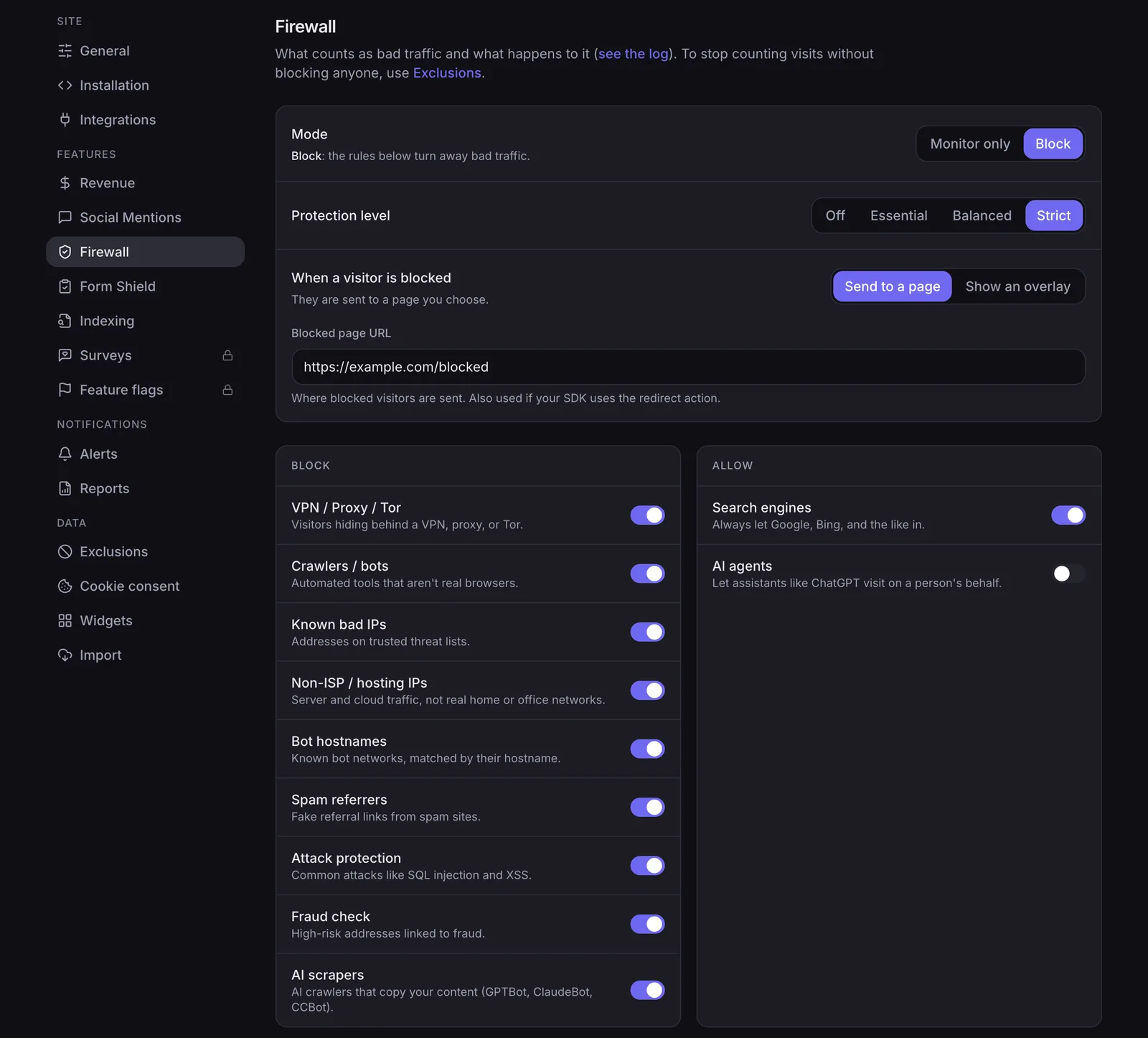
NoirTrack's firewall is the enforcement layer that checks incoming traffic and blocks bots, datacenter proxies, VPNs, AI scrapers, and spam before they reach reporting. That matters because the earlier the block happens, the less junk gets counted, and the cleaner your sessions, conversions, and revenue attribution stay. If you want to block AI crawlers from website analytics, start where the request first enters your stack, then move down only if you need more control.
Blocking options compared
Use the layer that matches where you can stop traffic. robots.txt asks crawlers to stay out, but it does not stop requests. Edge or firewall blocking stops bad traffic before your app and analytics script process it. Server-side blocking sits closest to the app and is useful when you want to reject requests before your code runs.
| Method | Where it works | Protects analytics? |
|---|---|---|
robots.txt |
Crawler-facing only | No |
| Edge or firewall blocking | At the edge or in NoirTrack's firewall | Yes |
| Server-side blocking | In your backend or middleware | Yes |
For a content site, the quickest setup is the firewall snippet with data-block on the script tag. For an app or API, server-side blocking fits better because the request never reaches your app logic. NoirTrack's firewall also logs what it blocks, so you can review the reason before you widen or narrow the rules. See how the firewall works and Monitor vs Block for the setup path.
Which firewall mode should you use first?
Start in Monitor mode, watch what the firewall would block, then switch to Block when the decisions match the traffic you expect. That rollout gives you a read on the impact before you block anything sitewide, and NoirTrack lets you change the mode in the dashboard without changing code. If you want to block AI crawlers from website analytics, this is the safest place to begin.
Monitor vs Block
| Mode | What it does | When to use it |
|---|---|---|
| Monitor | Logs traffic that would be blocked, but lets it through | First pass on a live site |
| Block | Enforces the rule and stops bad traffic | After you trust the rule set |
Monitor mode checks every visit and records what it would block, so you can see the effect on your own traffic mix before you turn enforcement on. Block mode applies the rule and keeps that traffic out. NoirTrack says the same install works in both modes, so switching later does not require a redeploy or a new snippet. That makes it easy to test on a real site, review the results, and only then flip the switch.
A simple way to think about it: if 100 suspicious visits show up in Monitor mode and 8 of them look like customer traffic from a VPN, you can tune the rules before any of those 8 get turned away. That is the point of starting with observation, not enforcement.
Where to start in NoirTrack
- Open Firewall settings. Go to Site → Settings → Firewall and choose the mode there. The same page controls whether the firewall watches or blocks.
- Pick a protection level. Start with the level that matches how noisy your traffic is. If your site gets a lot of scraper traffic, begin with a stricter setting and check the log.
- Choose a blocked page style. Set the response your visitors see when a request is blocked, such as a redirect or an on-page overlay, so the experience fits your site.
- Turn on Monitor first. Let it run long enough to see a normal traffic sample, then review the decisions before moving to Block.
Reviewing the firewall log helps here because every allow and block decision is recorded. That gives you a concrete check before you enforce anything across the whole site. Once the log shows the right traffic getting flagged, switch the same setting to Block and keep the rest of your setup unchanged.
How do you review what was blocked?
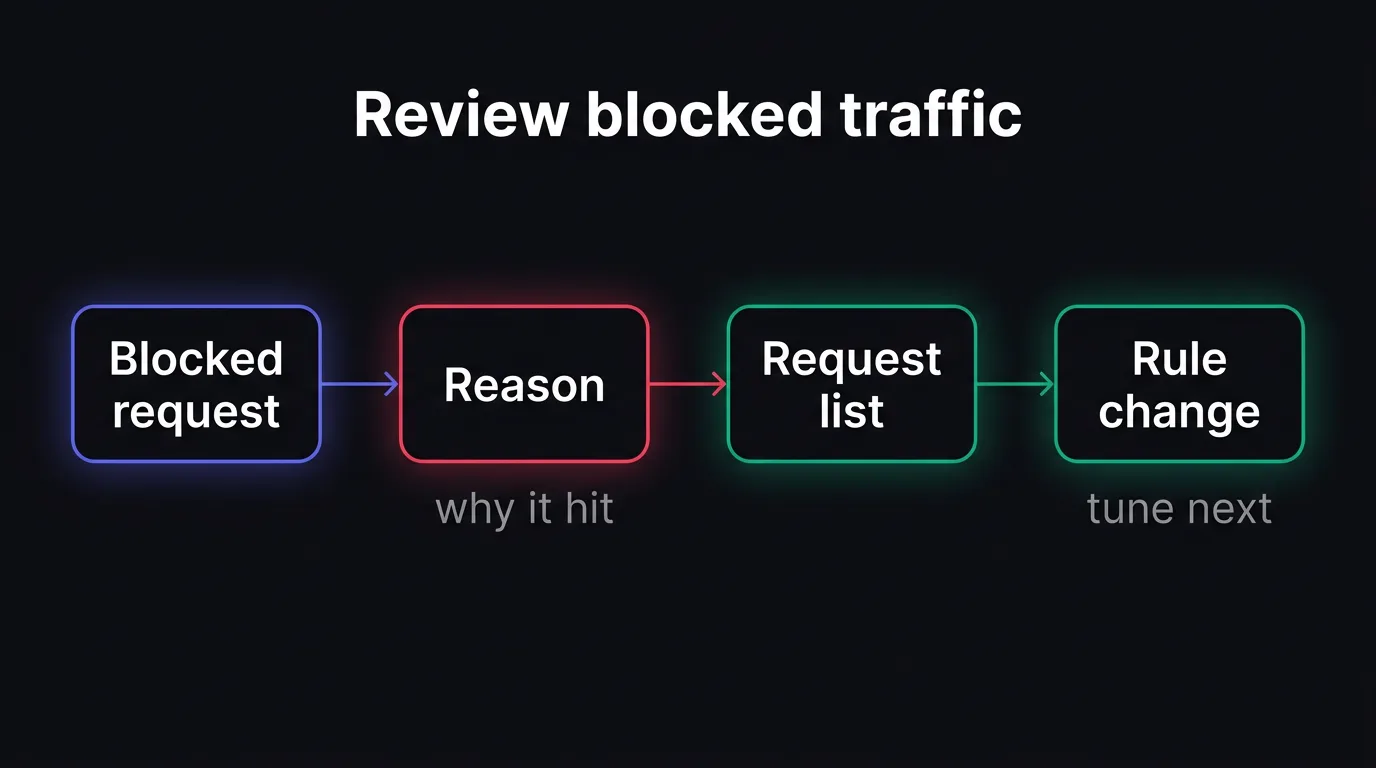
Open Site → Firewall and inspect the firewall log to confirm what got caught and why. The Reviewing & tuning page shows totals, the reason for each block, and the individual requests behind those totals, so you can verify that the rules are catching bots, proxies, VPNs, and scrapers instead of real visitors. That review step is how you block AI crawlers from website analytics without guessing. For the full workflow, see Reviewing & tuning.
What to check in the log
-
Read the reason field. The reason tells you why NoirTrack blocked the request, such as bot, proxy, VPN, scraper, or spam. If a rule is doing the work you wanted, you should see that reason repeat across similar requests.
-
Scan individual requests for patterns. Look for the same IP range, user agent, path, or timing pattern across several hits. A burst of requests to
/pricingfrom one datacenter range, for example, usually points to automation rather than a person reading the page. -
Adjust rules when something legitimate appears. If a customer on a corporate VPN or a monitoring tool gets caught, add an exception or loosen the category that flagged it. NoirTrack applies changes immediately to new requests, so the next visit follows the updated rule set.
A simple review pass can start with 20 blocked requests. If 18 are clear bot traffic and 2 are real users, you know the filter is close and needs one exception, not a full rollback.
How should you roll this out without breaking real traffic?
A safe rollout aims for fewer false visits, not zero traffic, because overblocking can hide customers. Start by inspecting your current traffic, then monitor the firewall, then block only after the rules look right, and recheck the dashboard for cleaner traffic.
A practical rollout
- Install NoirTrack and open Site → Settings → Firewall. Use the quick start to add the script, then turn on the firewall settings. See /docs/quick-start.
- Start in Monitor mode and watch the log in Site → Firewall. The log shows what would have been blocked and why. See /docs/reviewing-blocks.
- Switch to Block after you confirm the rules catch bots, proxies, and scrapers.
- Check the dashboard again. Cleaner traffic means fewer false visits and a tighter count.
When this does not apply
If you only need a policy statement for good-faith crawlers, robots.txt still helps. If your site has no public pages or forms, pressure may be lower. If you want reporting accuracy, enforcement still matters.
Questions, answered.
An AI crawler is an automated bot that requests pages or endpoints and can inflate visits, distort sources, and make conversion rates look worse or better than they are. These requests can hit blog pages, product pages, and even tracking endpoints, which makes traffic look real when it is not. The noise can skew source reports, landing page data, and conversion math.
Blocking AI crawlers usually takes little effort if you use a firewall that starts in monitor mode and then switches to block after review. The main work is checking logs, confirming what the firewall catches, and tuning rules where needed. Once the patterns are clear, the rule set is usually small.
Firewall blocking is better for analytics protection because robots.txt is advisory while a firewall stops the request before it reaches your numbers. Robots.txt can ask crawlers to stay out, but it does not enforce anything. A firewall can drop the request at the edge, which keeps bot traffic out of your reports.
The common mistake is blocking too aggressively without reviewing logs first, which can catch real visitors or useful tools. Start in monitor mode and check what gets flagged before you block. That gives you a record of the traffic pattern and reduces the chance of cutting off something you actually want.
Blocking AI crawlers helps by removing bot noise, but it does not fix broken tracking setup. If sources, campaign tags, or revenue links are missing, your attribution still needs work. Clean bot filtering makes the report clearer, but it does not rebuild data that never arrived.
Try NoirTrack
See which traffic actually pays.
Analytics with revenue attribution and a built-in bot firewall. One script tag, live in two minutes.
Free 14-day trial, no credit card
Written by NoirTrack team
The privacy-first Google Analytics alternative with a built-in bot firewall and revenue attribution. See which traffic makes you money, no cookie banner.


